Adding Wireless Devices for Monitoring
ObserveOps (formerly known as AIOps) monitors wireless devices by discovering them through a credential profile and provisioning them as monitors. Once provisioned, ObserveOps continuously collects performance metrics and generates alerts based on what it finds. You can customize Monitor Settings for each monitor, including polling intervals, thresholds, and alert notifications.
Wireless Vendors Supported
| Vendor |
|---|
| Cisco Wireless |
| Aruba Wireless |
| Ruckus Wireless |
| Ruijie Wireless |
| Extreme Wireless |
- Cisco Wireless
- Aruba Wireless
- Ruckus Wireless
- Ruijie Wireless
- Extreme Wireless
Adding a Cisco Wireless Device
Prerequisites
- Enable SNMP on the Cisco device before discovery.
- Confirm that port
161is open and accessible from the ObserveOps server.
1. Create a Credential Profile
Go to Menu. Select Settings  . Select Discovery Settings
  . Select Credential Profile. The Credential Profile screen opens. Select Create Credential Profile.
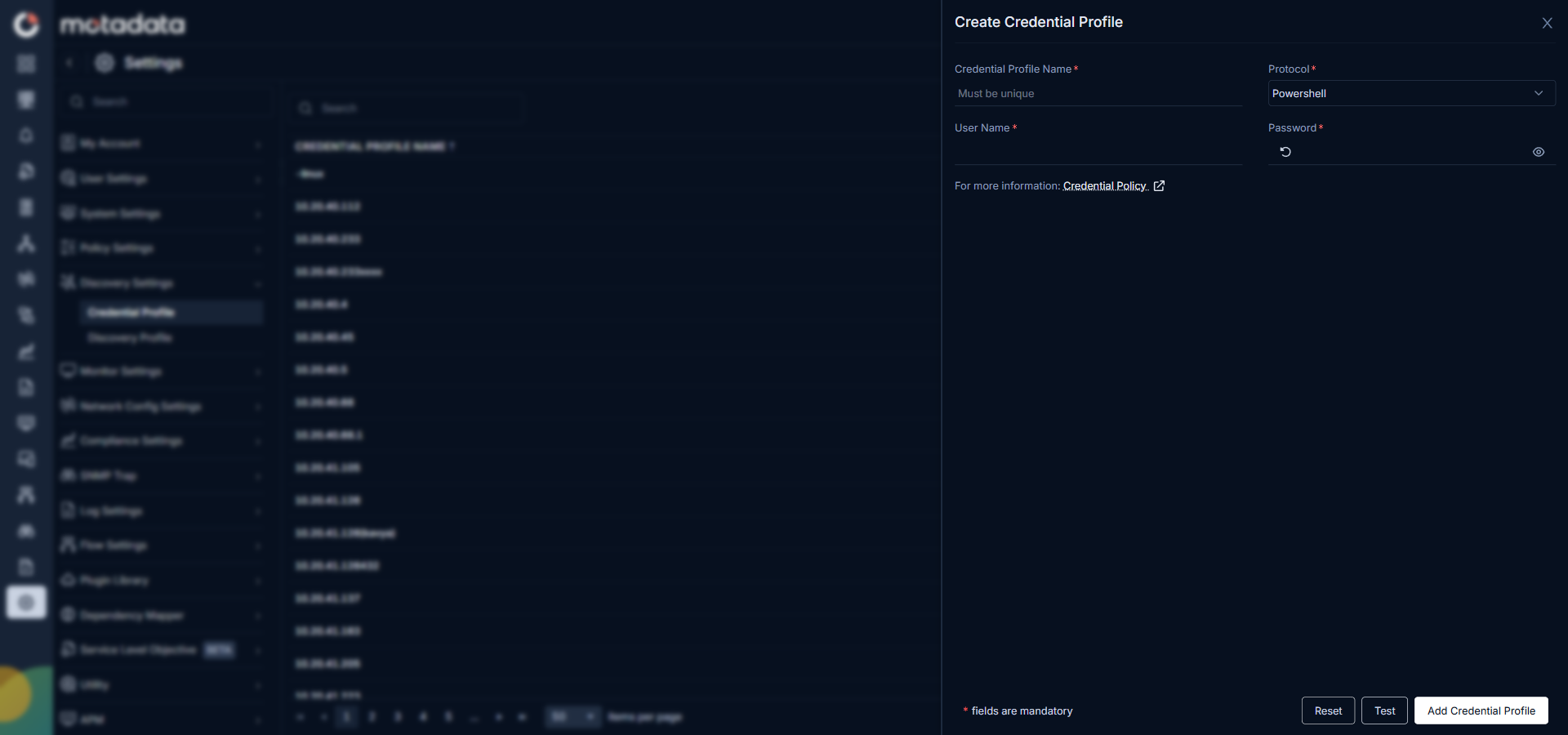
The Create Credential Profile form opens.
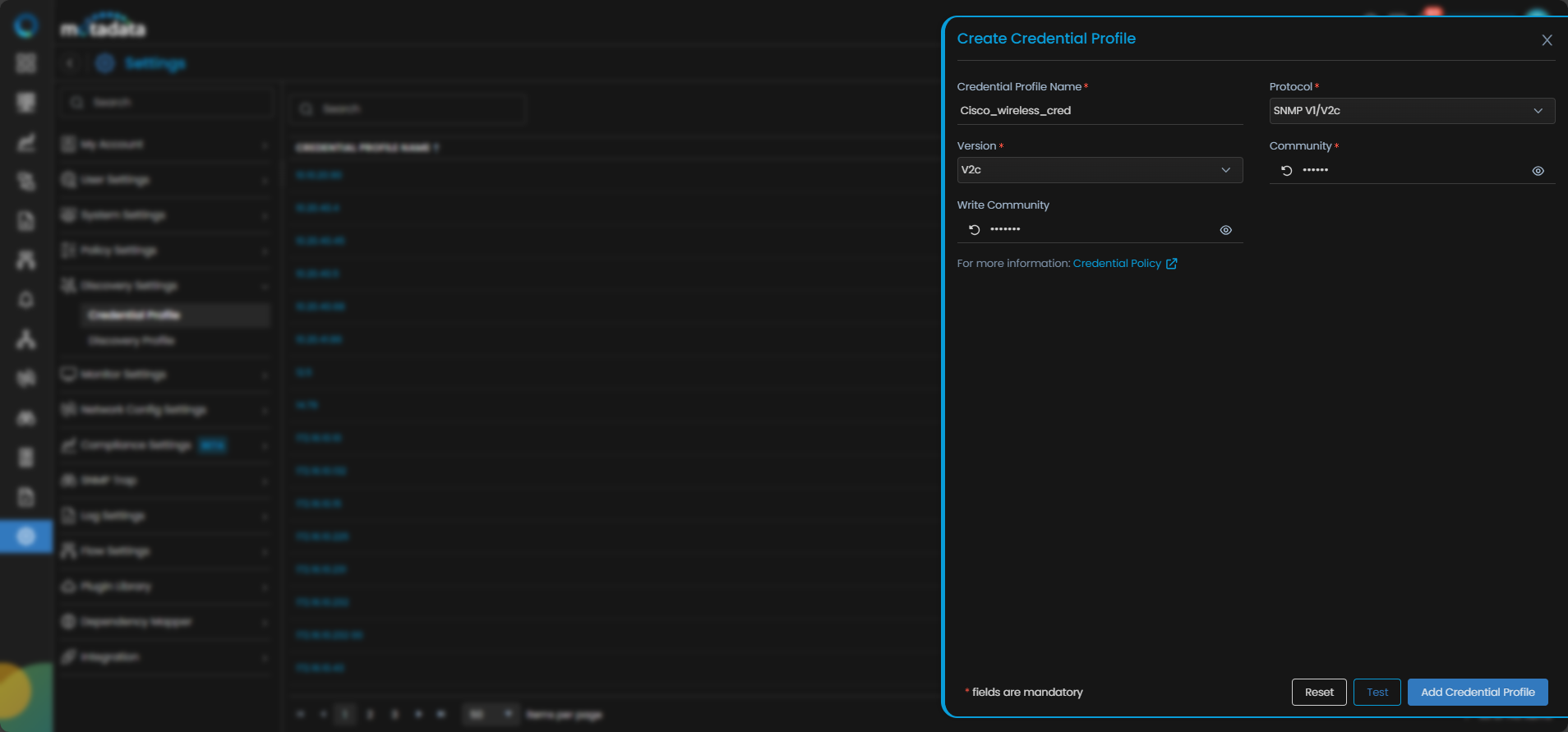
| Field | What to Enter |
|---|---|
| Credential Profile Name | A unique name to identify this profile |
| Protocol | Select SNMP V1/V2c or SNMP V3 based on your device configuration |
| Version (V1/V2c) | Select V1 or V2c and enter the Community and Write Community strings |
| Security User Name (V3) | The SNMP v3 username and Security Level |
Select Test to verify the credentials connect to the device. Select Reset to clear all fields. Select Add Credential Profile to save.
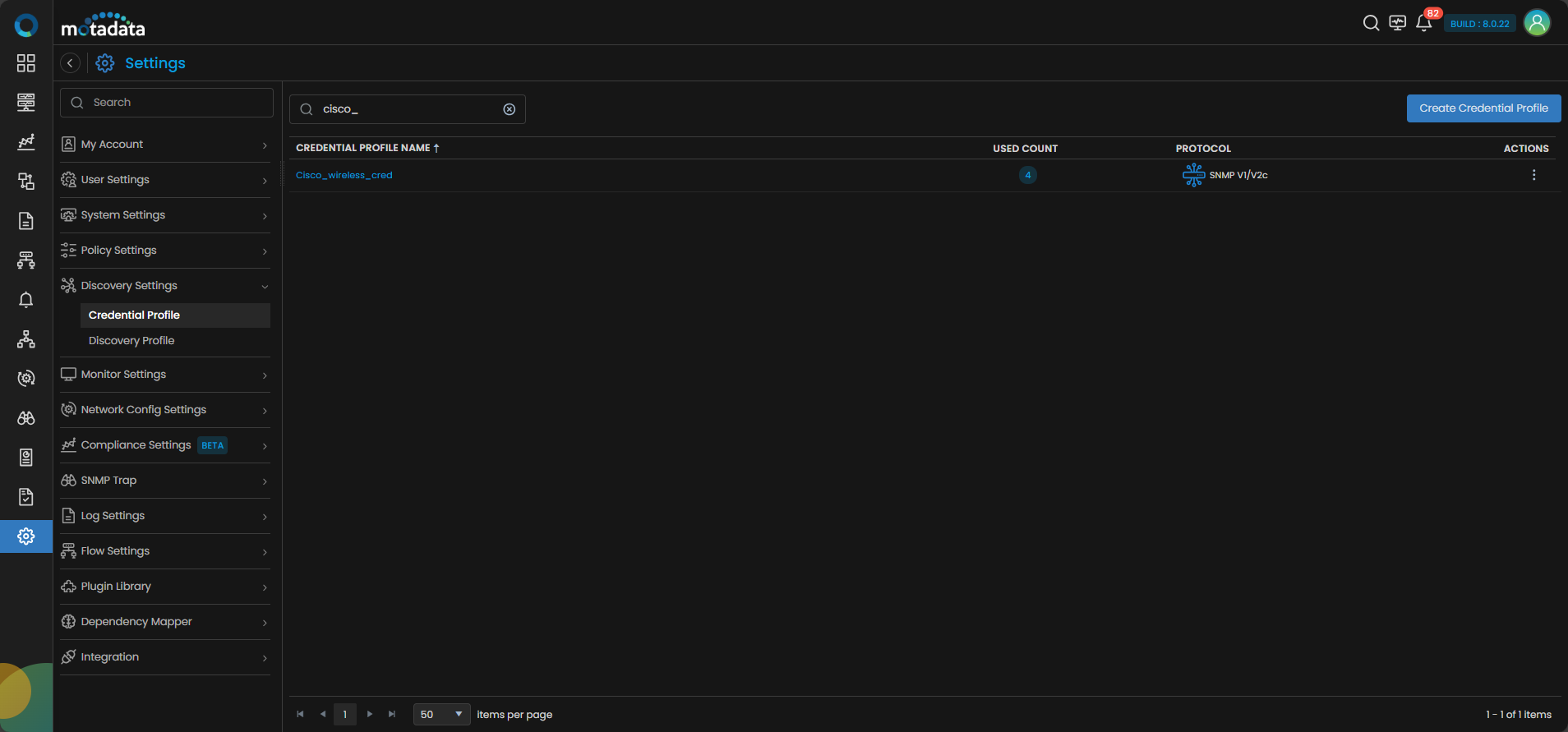
The profile now appears in the Credential Profile list.
2. Create a Discovery Profile
Go to Menu. Select Settings . Select Discovery Settings . Select Discovery Profile. The Discovery Profile screen opens. Select Create Discovery Profile.
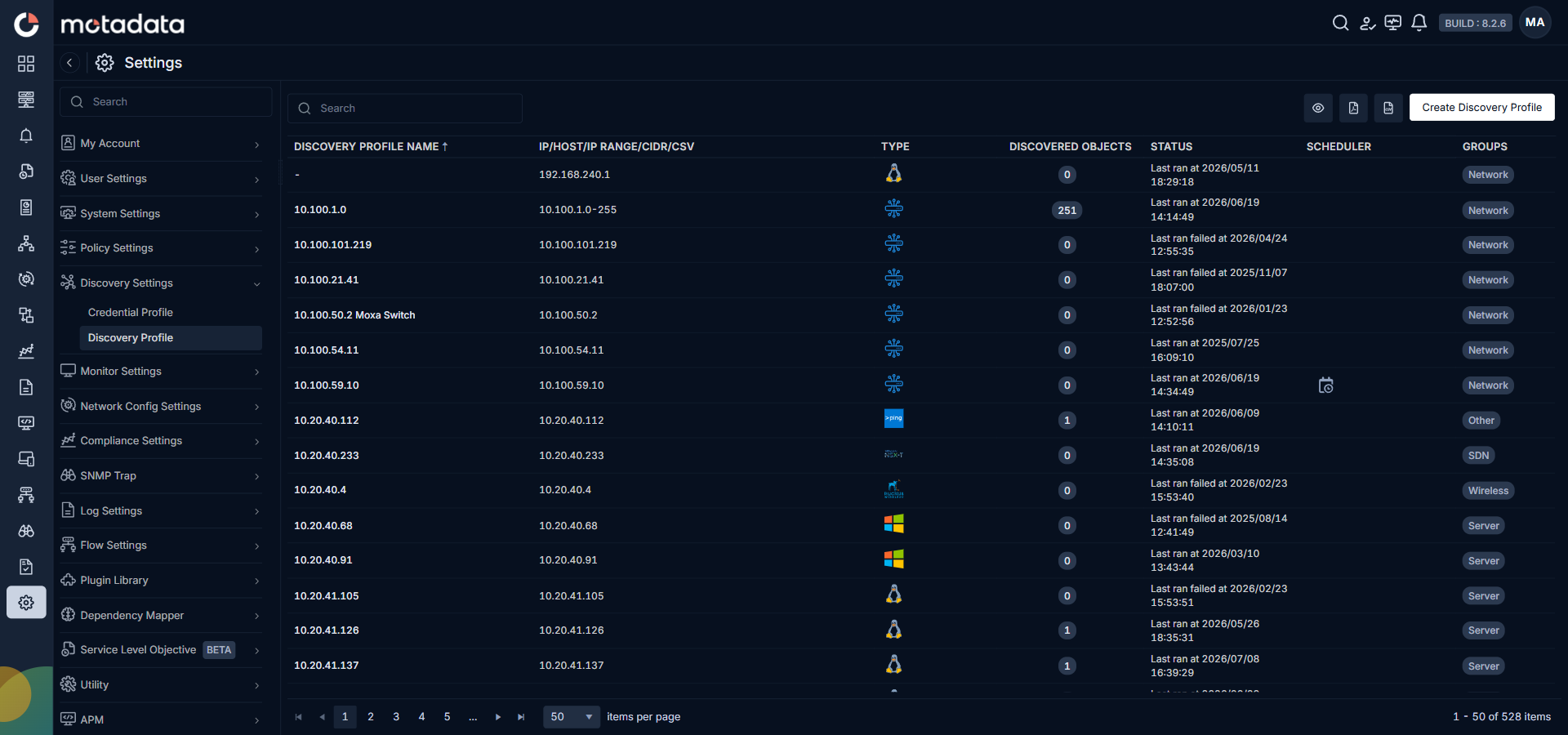
The Create Discovery Profile form opens. Select Wireless from the sidebar.
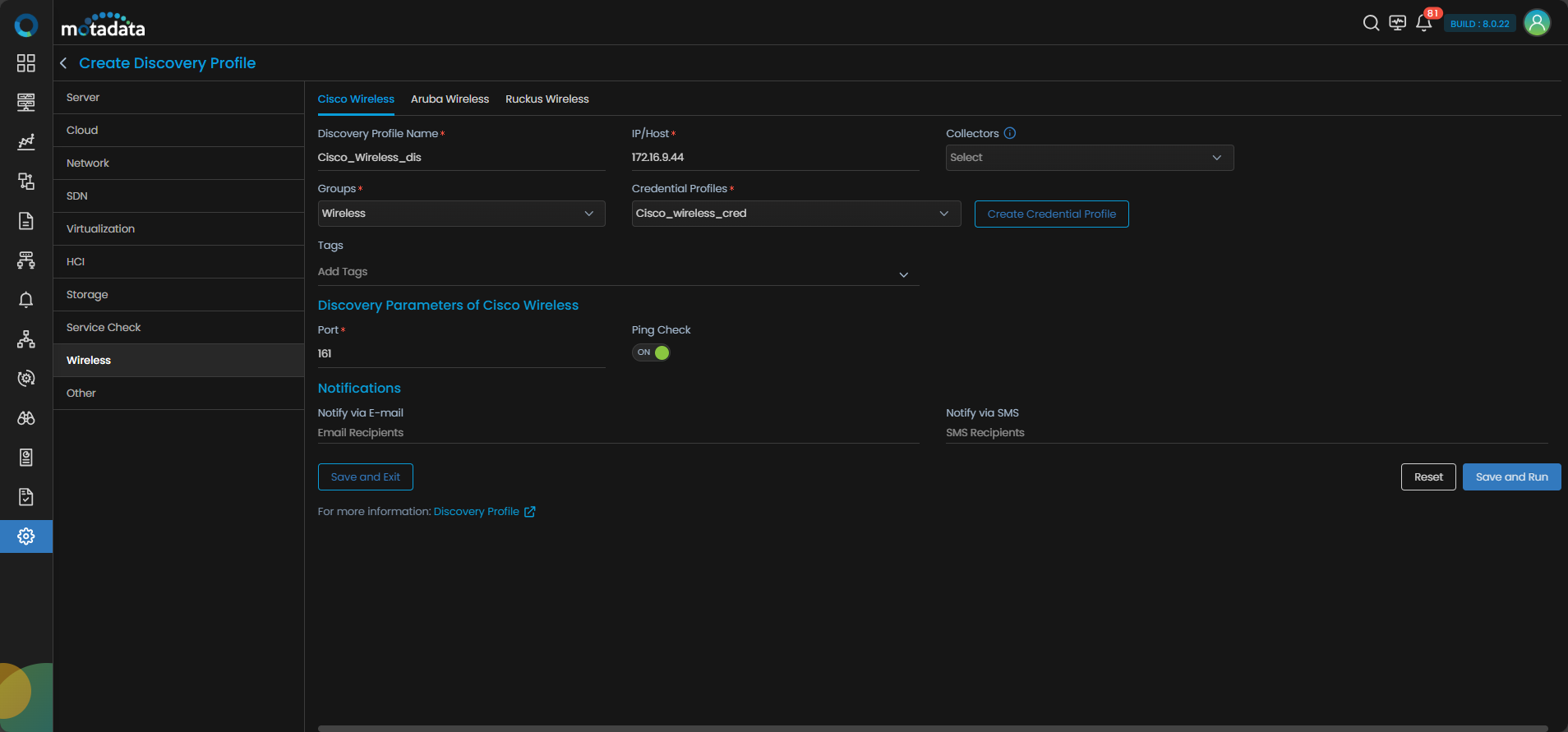
Cisco Wireless is selected by default.
| Field | What to Enter |
|---|---|
| Discovery Profile Name | A unique name to identify this profile |
| IP / Host | The IP address of the Cisco wireless controller |
| Collectors | One or more Collectors for data collection. If you skip this, ObserveOps selects a Collector automatically. |
| Groups | One or more Groups to assign to provisioned monitors |
| Credential Profile | Select the Cisco Wireless credential profile you just created |
| Tags | Tags to assign to discovered devices |
| Port | Pre-populated. No change needed. |
| Ping Check | On by default. Toggle off to discover devices that don't respond to ping. |
| Notify Team | Email addresses, handles, or user profiles to notify when discovery completes |
Select Collectors based on how you want to distribute the monitoring load.
Select Save and Run to save and start discovery immediately. Select Save and Exit to save without running.
3. Provision the Discovered Devices as Monitors
After the discovery run completes, ObserveOps shows all discovered devices.
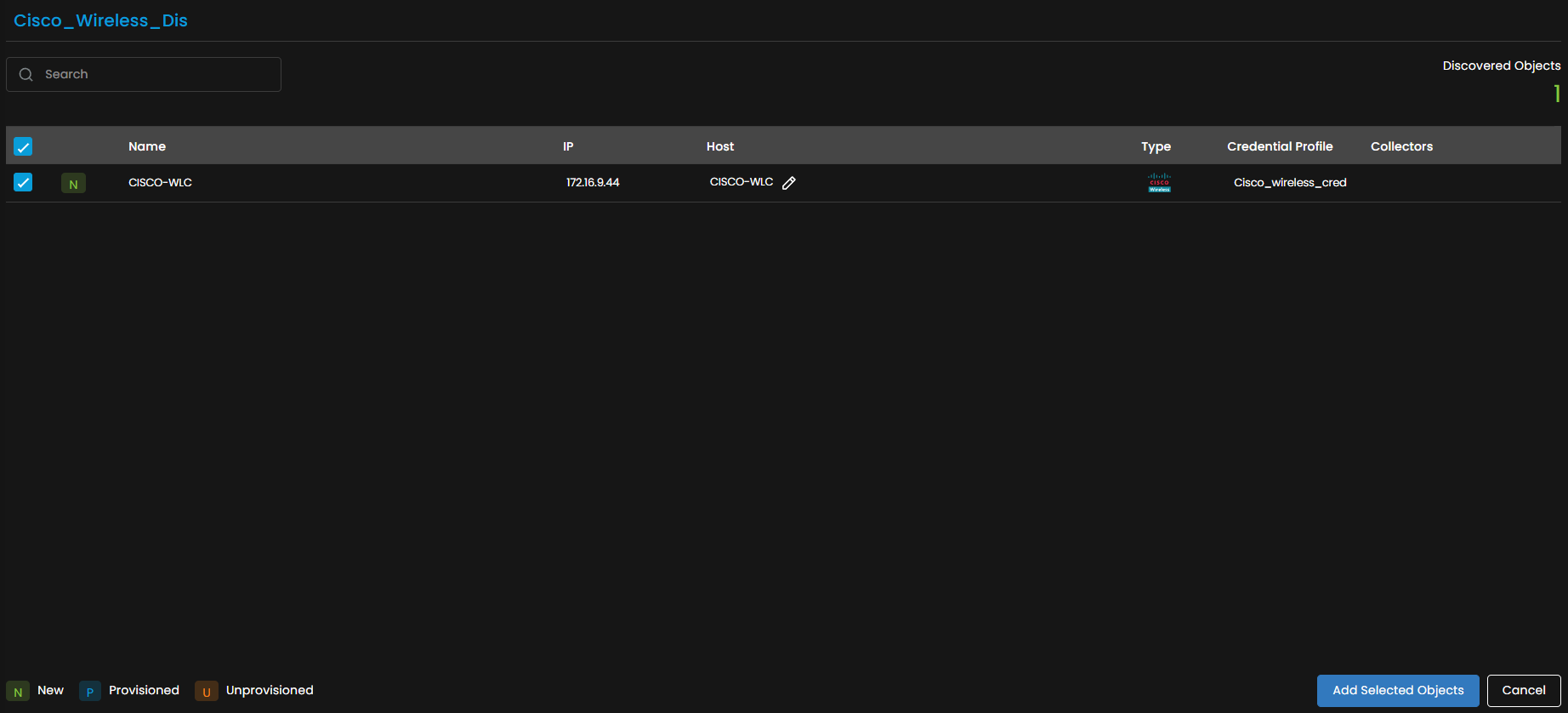
Select the devices you want to add as Monitors.

Select Add Selected Objects to provision the selected devices as monitors. ObserveOps now collects metrics continuously.
To view the monitors, go to Menu. Select Monitor. Select Network.
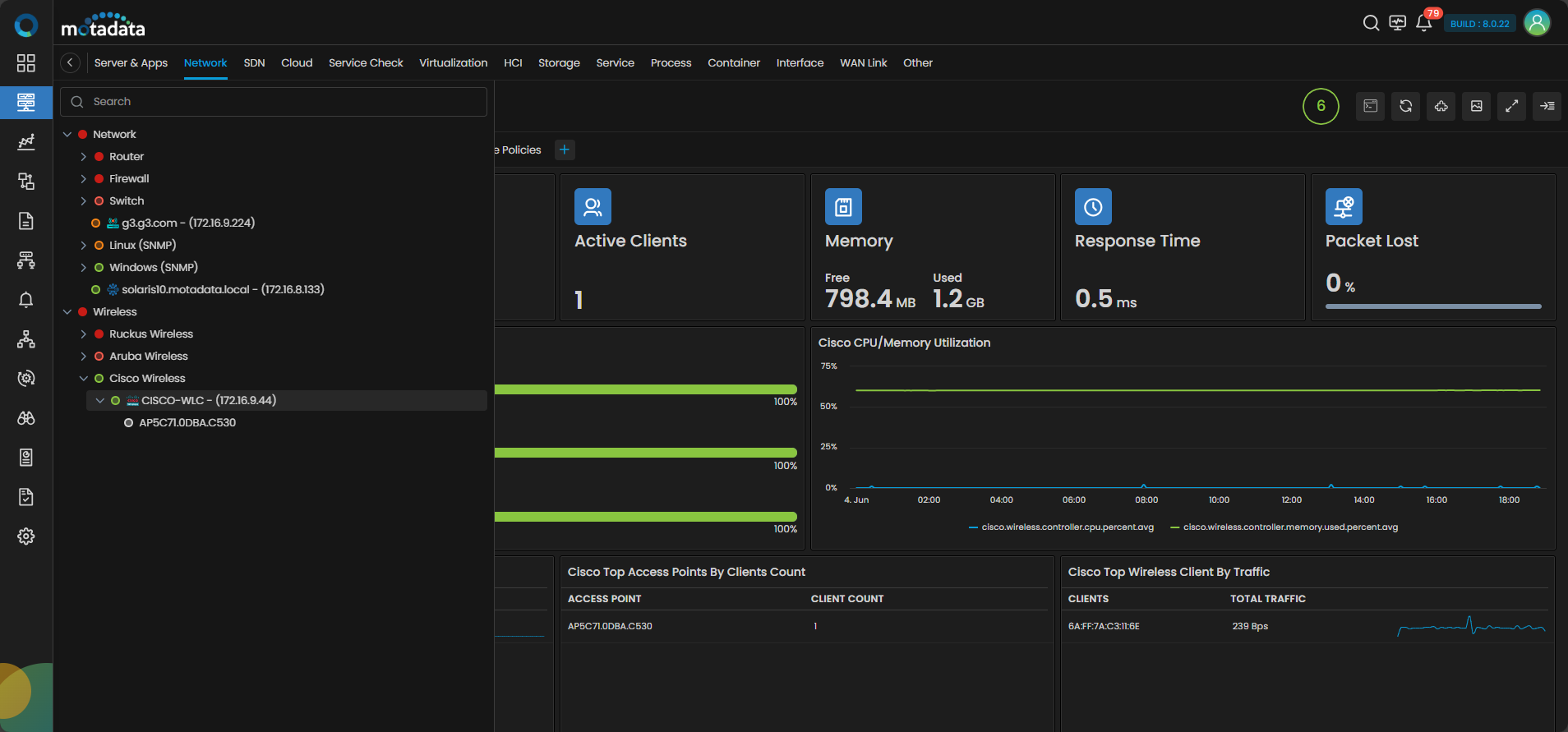
The Cisco Wireless devices are now added to ObserveOps.
Adding an Aruba Wireless Device
Prerequisites
- Enable SNMP on the Aruba device before discovery.
- Confirm that port
161is open and accessible from the ObserveOps server.
1. Create a Credential Profile
Go to Menu. Select Settings . Select Discovery Settings . Select Credential Profile. The Credential Profile screen opens. Select Create Credential Profile.
The Create Credential Profile form opens.
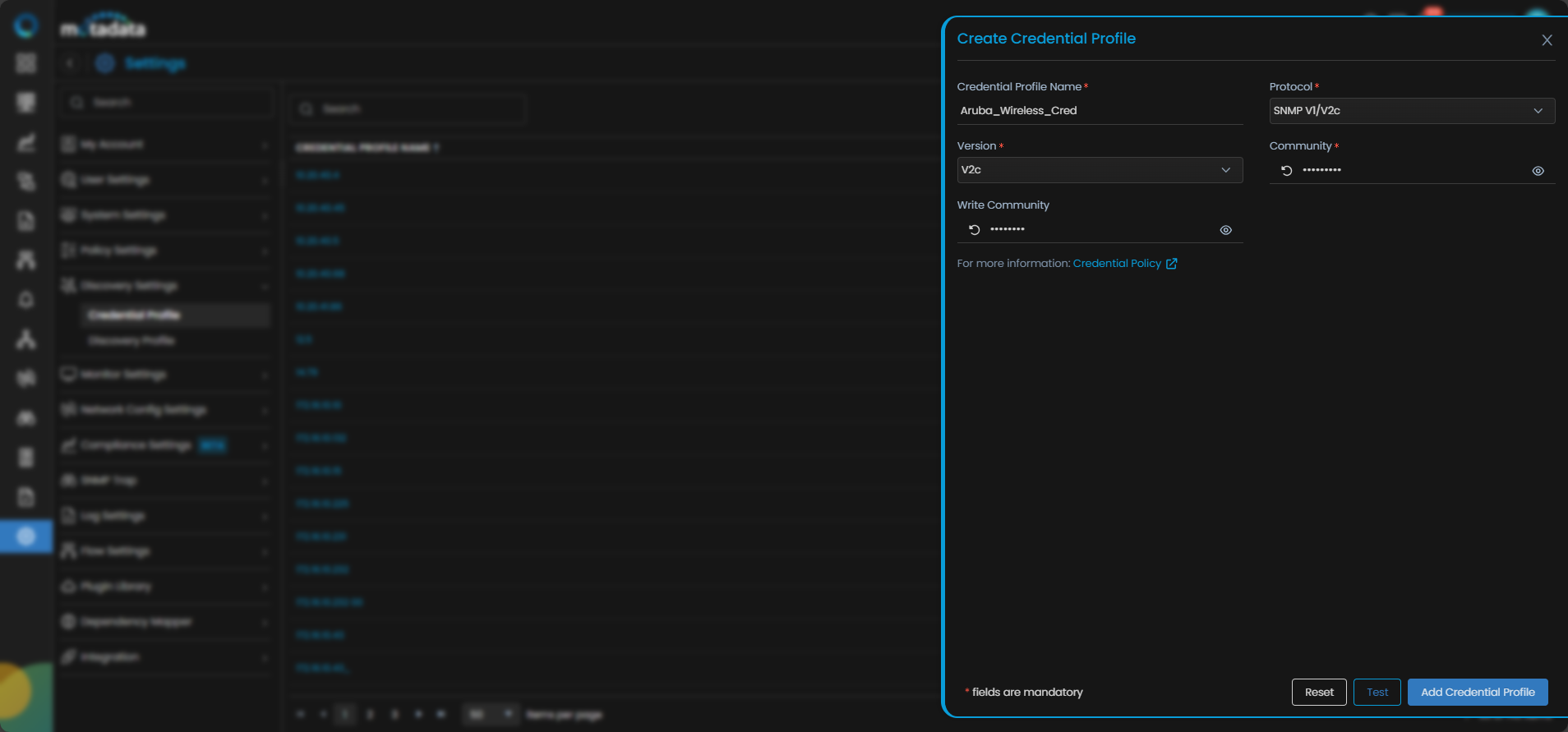
| Field | What to Enter |
|---|---|
| Credential Profile Name | A unique name to identify this profile |
| Protocol | Select SNMP V1/V2c or SNMP V3 based on your device configuration |
| Version (V1/V2c) | Select V1 or V2c and enter the Community and Write Community strings |
| Security User Name (V3) | The SNMP v3 username and Security Level |
Select Reset to clear all fields. Select Add Credential Profile to save.
The profile now appears in the Credential Profile list.
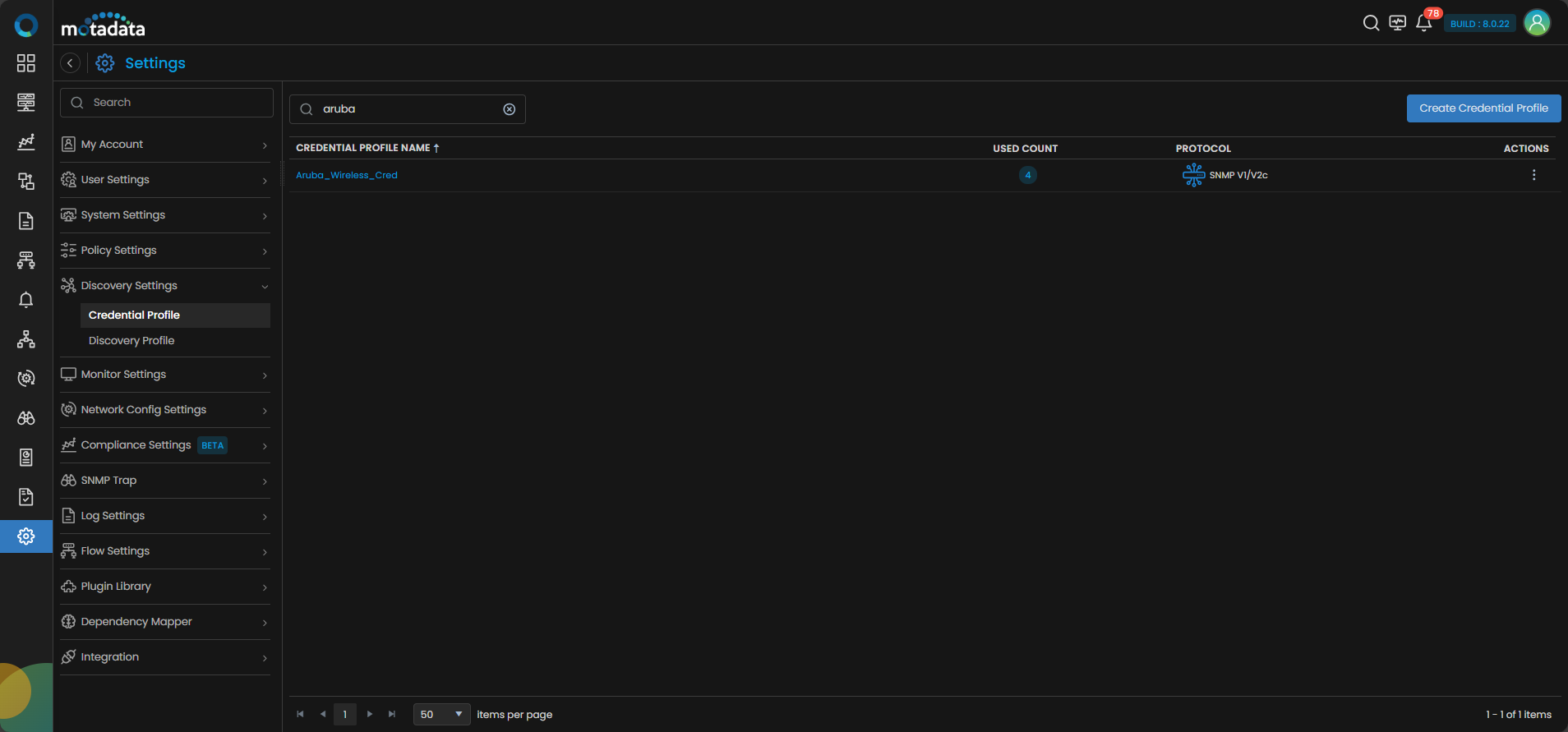
2. Create a Discovery Profile
Go to Menu. Select Settings . Select Discovery Settings . Select Discovery Profile. The Discovery Profile screen opens. Select Create Discovery Profile.
The Create Discovery Profile form opens. Select Wireless from the sidebar. Select Aruba Wireless.
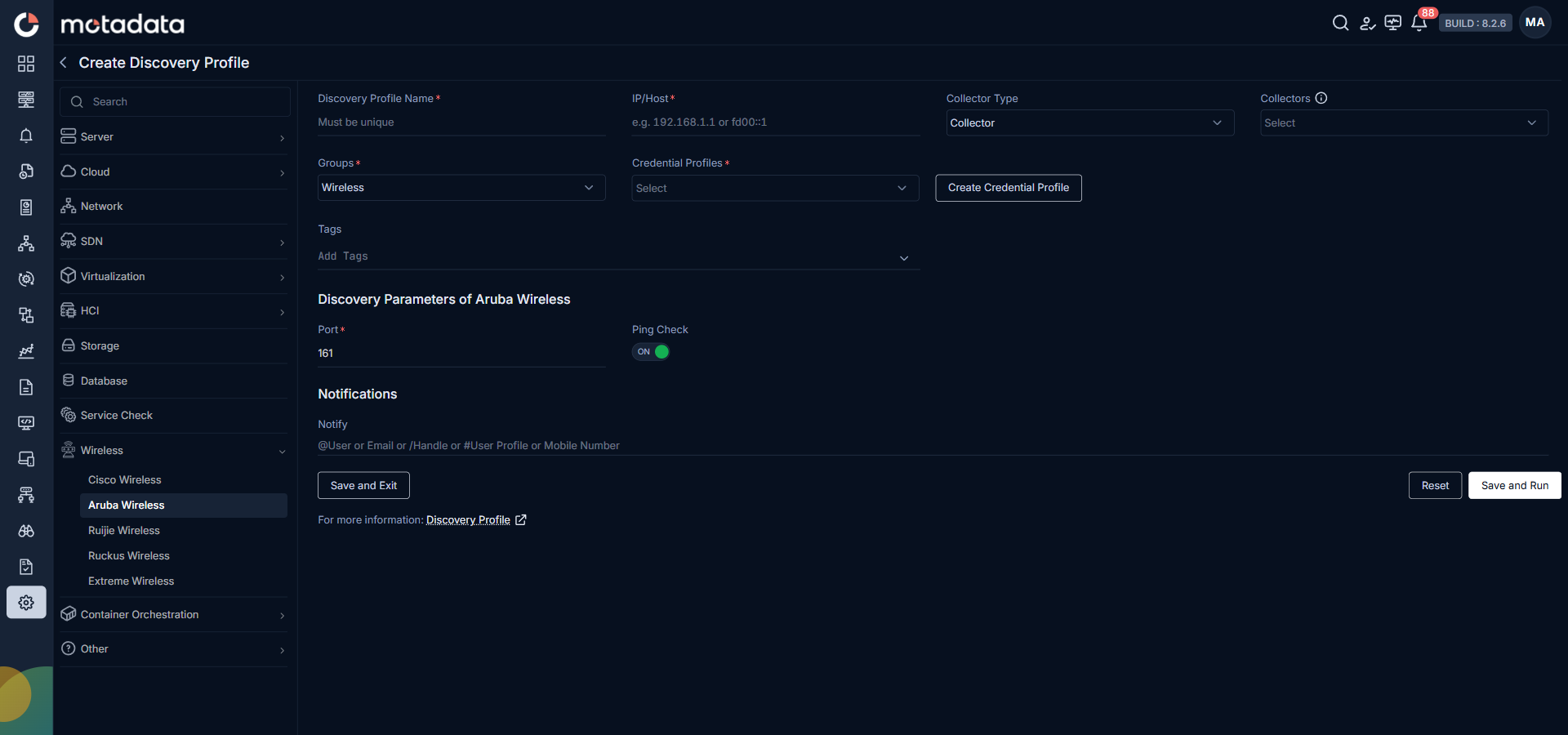
| Field | What to Enter |
|---|---|
| Discovery Profile Name | A unique name to identify this profile |
| IP / Host | The IP address of the Aruba wireless controller |
| Collectors | One or more Collectors for data collection. If you skip this, ObserveOps selects a Collector automatically. |
| Groups | One or more Groups to assign to provisioned monitors |
| Credential Profile | Select the Aruba Wireless credential profile you just created |
| Tags | Tags to assign to discovered devices |
| Port | Pre-populated. No change needed. |
| Ping Check | On by default. Toggle off to discover devices that don't respond to ping. |
| Notify Team | Email addresses, handles, or user profiles to notify when discovery completes |
Select Collectors based on how you want to distribute the monitoring load.
Select Save and Run to save and start discovery immediately. Select Save and Exit to save without running.
3. Provision the Discovered Devices as Monitors
After the discovery run completes, ObserveOps shows all discovered devices.
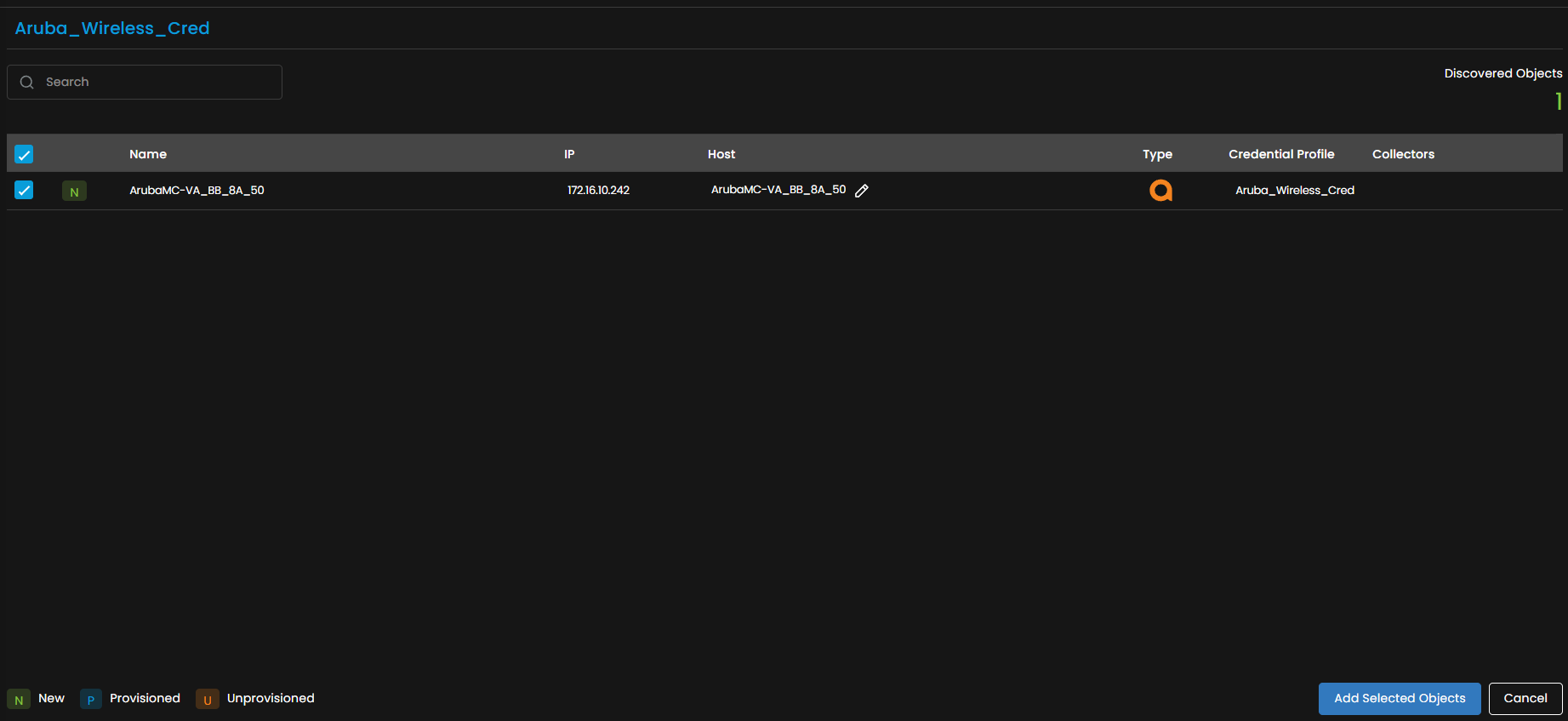
Select the devices you want to add as Monitors.
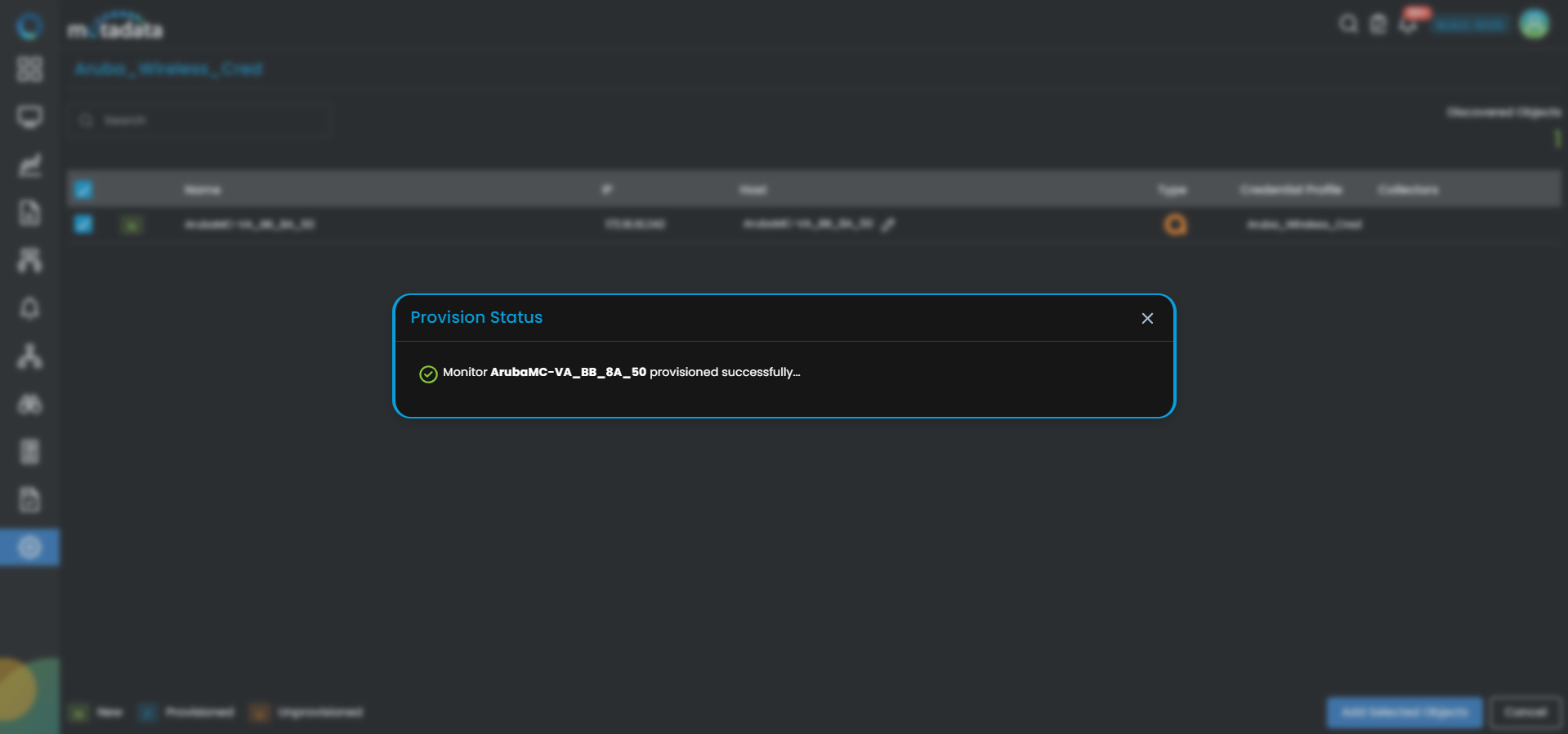
Select Add Selected Objects to provision the selected devices as monitors. ObserveOps now collects metrics continuously.
To view the monitors, go to Menu. Select Monitor. Select Network.
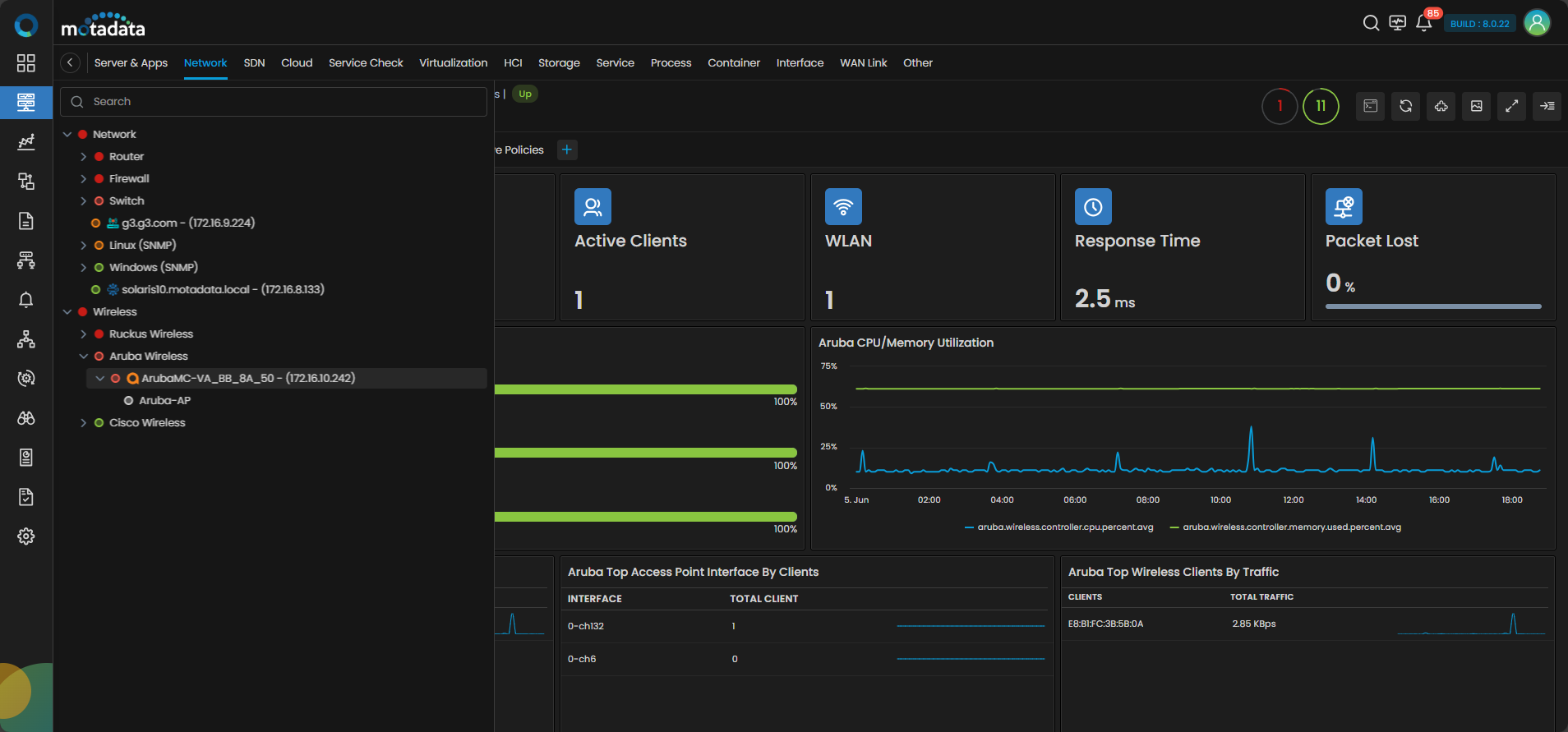
The Aruba Wireless devices are now added to ObserveOps.
Adding a Ruckus Wireless Device
Prerequisites
- Ensure you have credentials for HTTP/HTTPS access to the Ruckus device before discovery.
- Confirm that port
8443is open and accessible from the ObserveOps server.
1. Create a Credential Profile
Go to Menu. Select Settings . Select Discovery Settings . Select Credential Profile. The Credential Profile screen opens. Select Create Credential Profile.
The Create Credential Profile form opens.
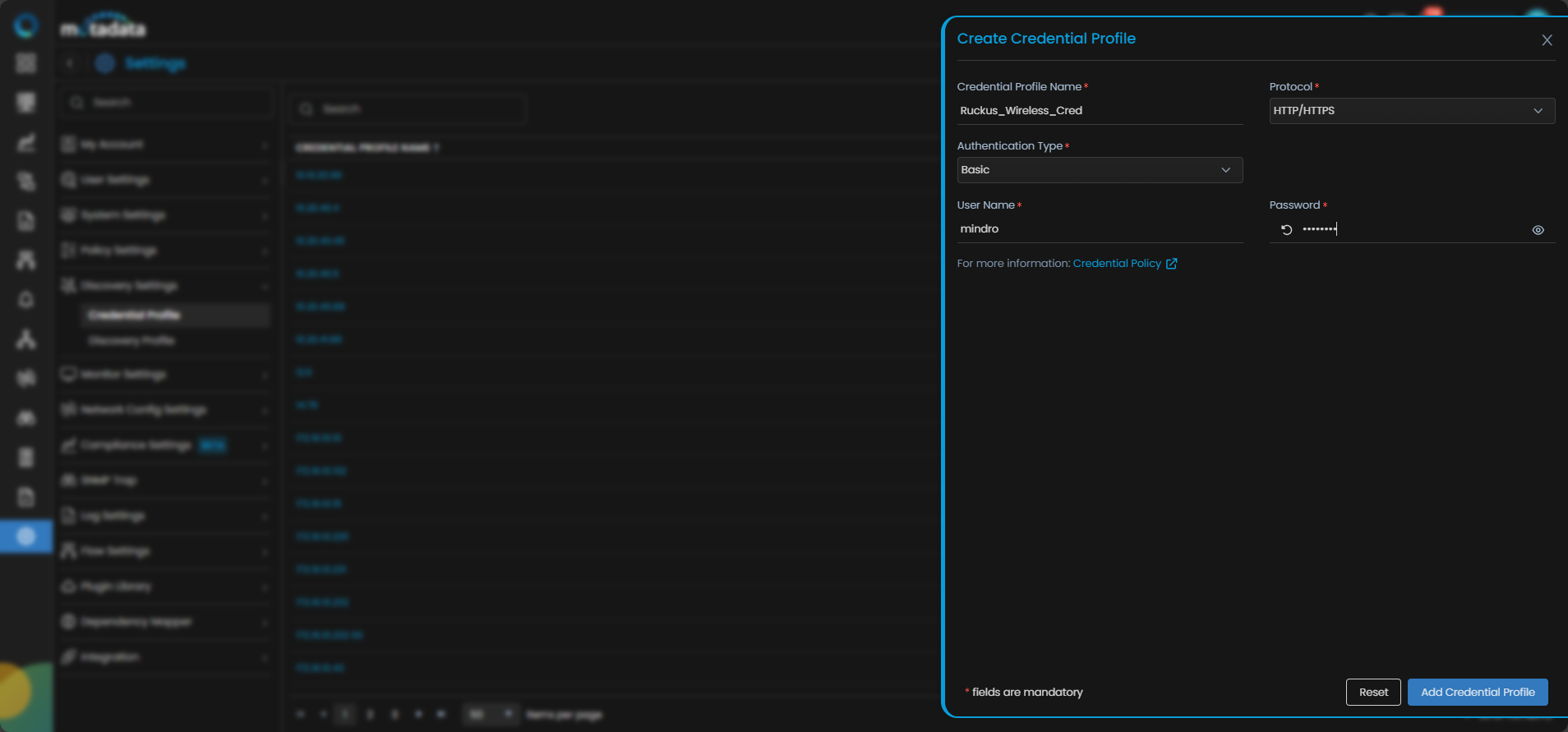
| Field | What to Enter |
|---|---|
| Credential Profile Name | A unique name to identify this profile |
| Protocol | Select HTTP/HTTPS |
| Username | The username for the Ruckus device |
| Password | The password for that account |
| Authentication Type | Select the authentication type configured on the device |
Select Reset to clear all fields. Select Add Credential Profile to save.
The profile now appears in the Credential Profile list.
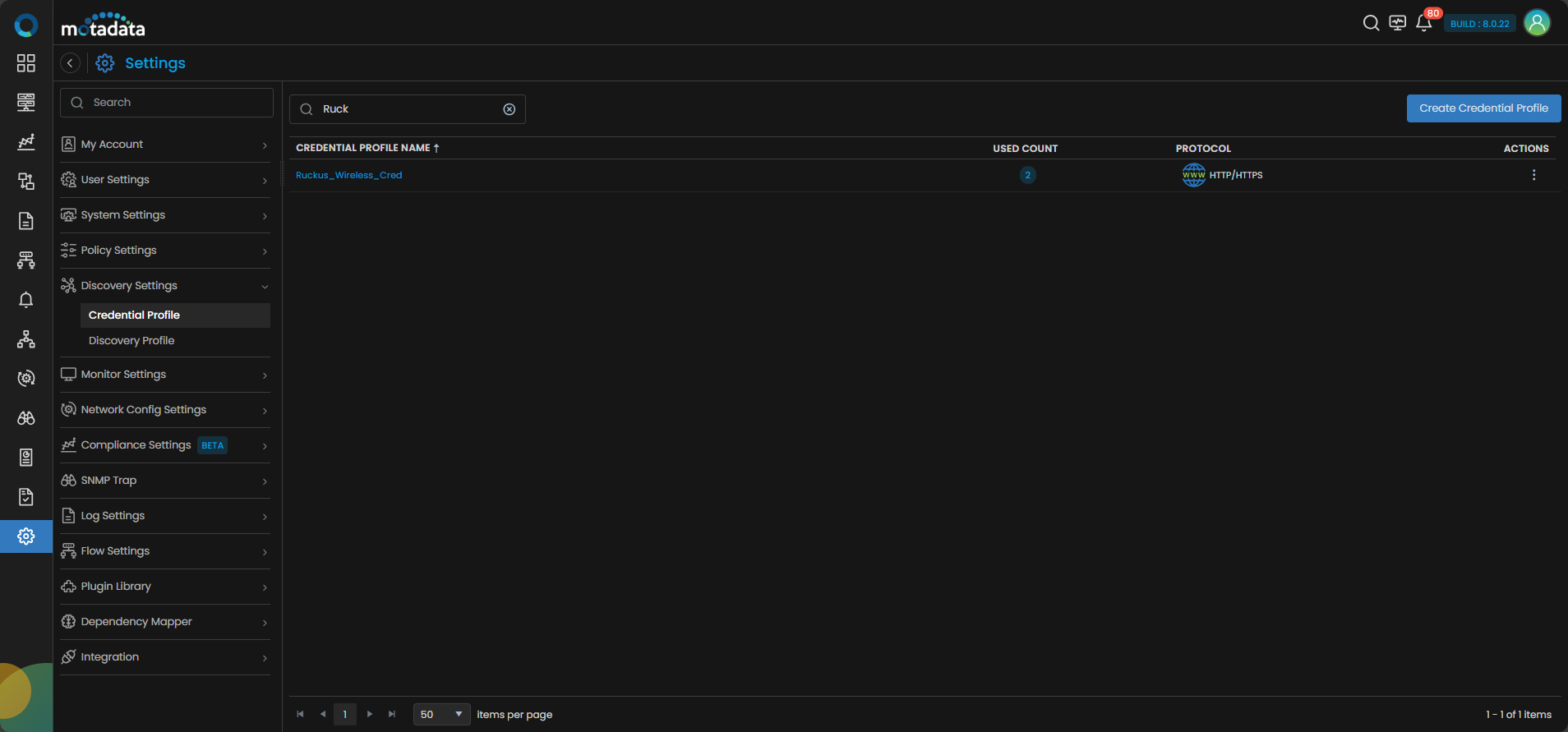
2. Create a Discovery Profile
Go to Menu. Select Settings . Select Discovery Settings . Select Discovery Profile. The Discovery Profile screen opens. Select Create Discovery Profile.
The Create Discovery Profile form opens. Select Wireless from the sidebar. Select Ruckus Wireless.
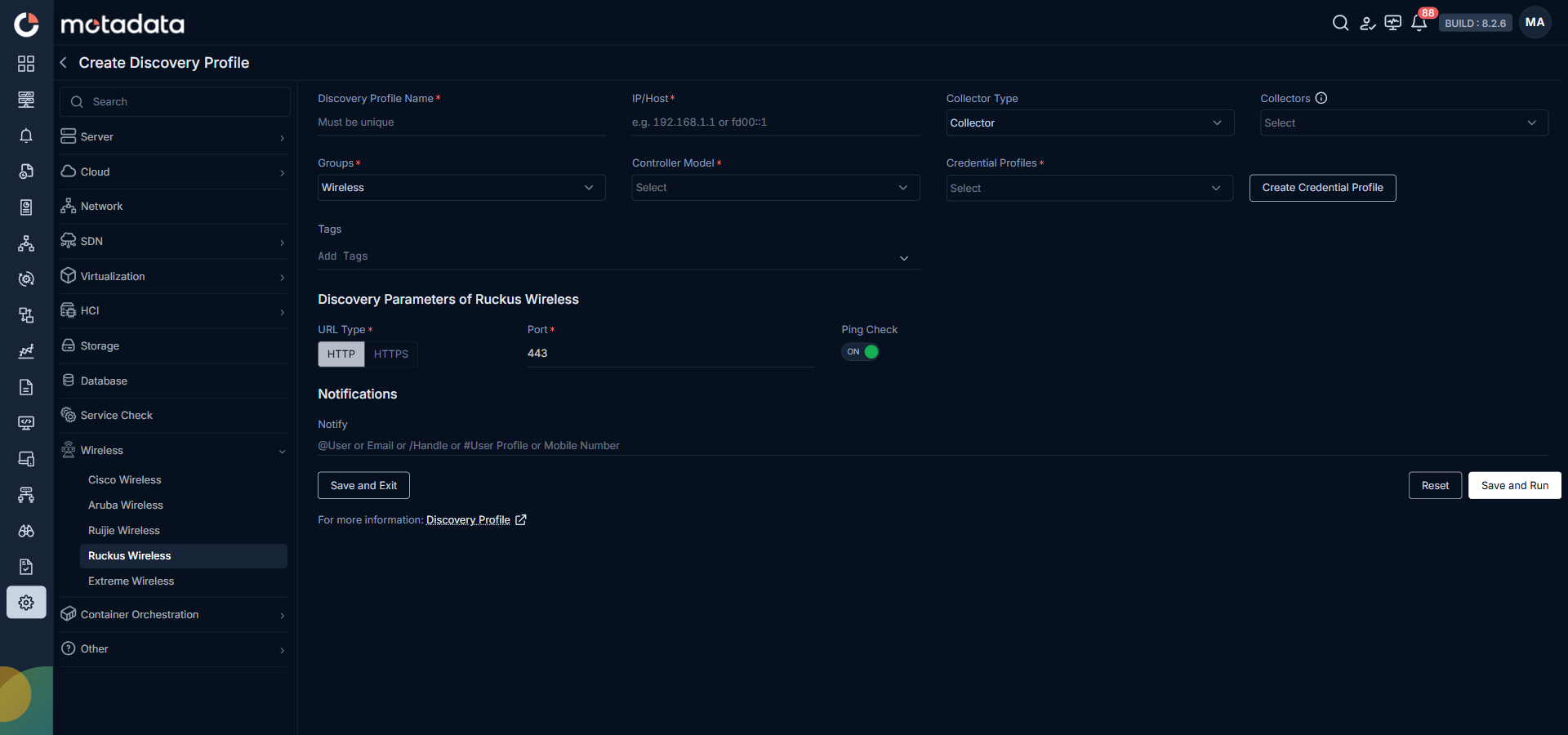
| Field | What to Enter |
|---|---|
| Discovery Profile Name | A unique name to identify this profile |
| IP / Host | The IP address of the Ruckus wireless controller |
| Collectors | One or more Collectors for data collection. If you skip this, ObserveOps selects a Collector automatically. |
| Groups | One or more Groups to assign to provisioned monitors |
| Controller Model | Select SmartZone or ZoneDirector based on your Ruckus controller type |
| Credential Profile | Select the Ruckus Wireless credential profile you just created |
| Tags | Tags to assign to discovered devices |
| URL Type | Select HTTP or HTTPS to match your device configuration |
| Port | Pre-populated. No change needed. |
| Ping Check | On by default. Toggle off to discover devices that don't respond to ping. |
| Notify Team | Email addresses, handles, or user profiles to notify when discovery completes |
Select Collectors based on how you want to distribute the monitoring load.
Select Save and Run to save and start discovery immediately. Select Save and Exit to save without running.
3. Provision the Discovered Devices as Monitors
After the discovery run completes, ObserveOps shows all discovered devices.
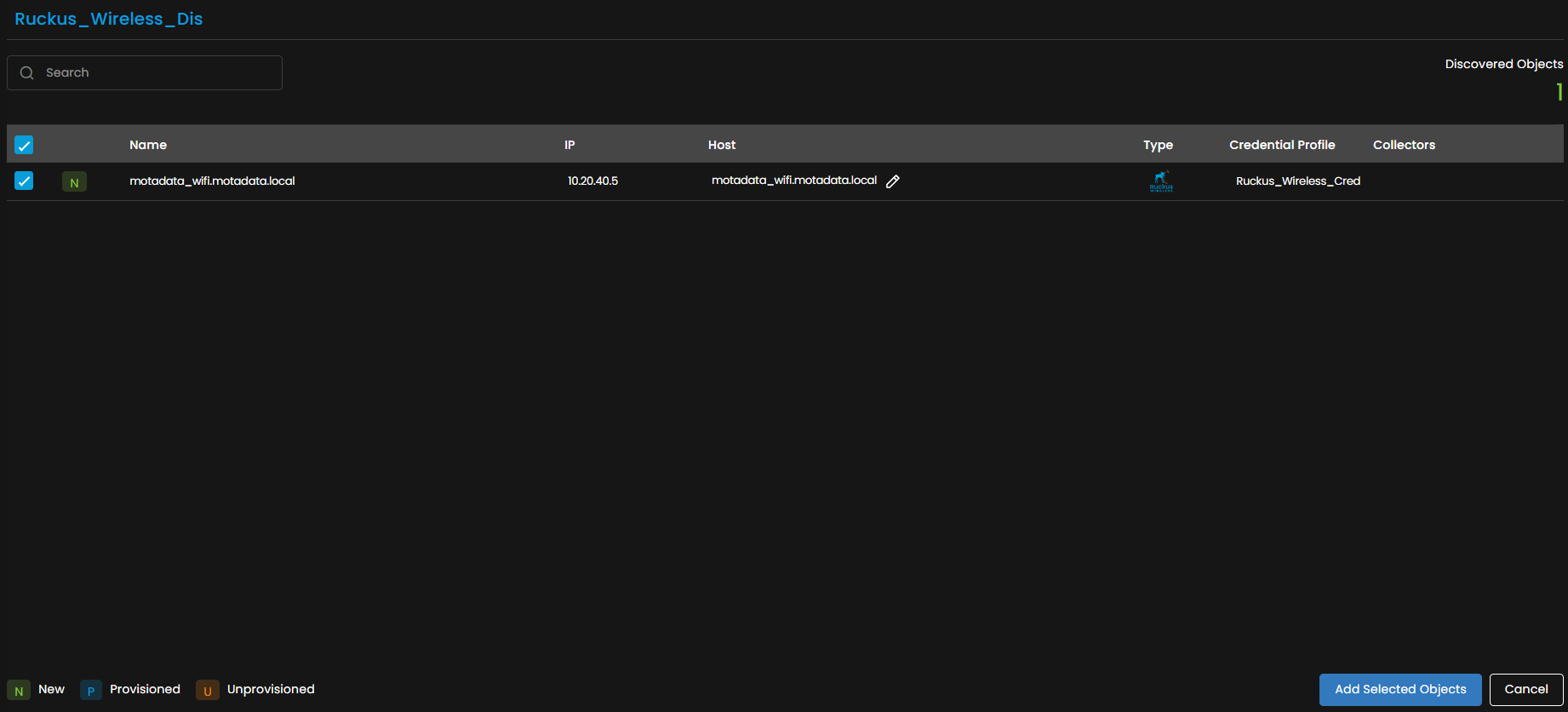
Select the devices you want to add as Monitors.

Select Add Selected Objects to provision the selected devices as monitors. ObserveOps now collects metrics continuously.
To view the monitors, go to Menu. Select Monitor. Select Network.
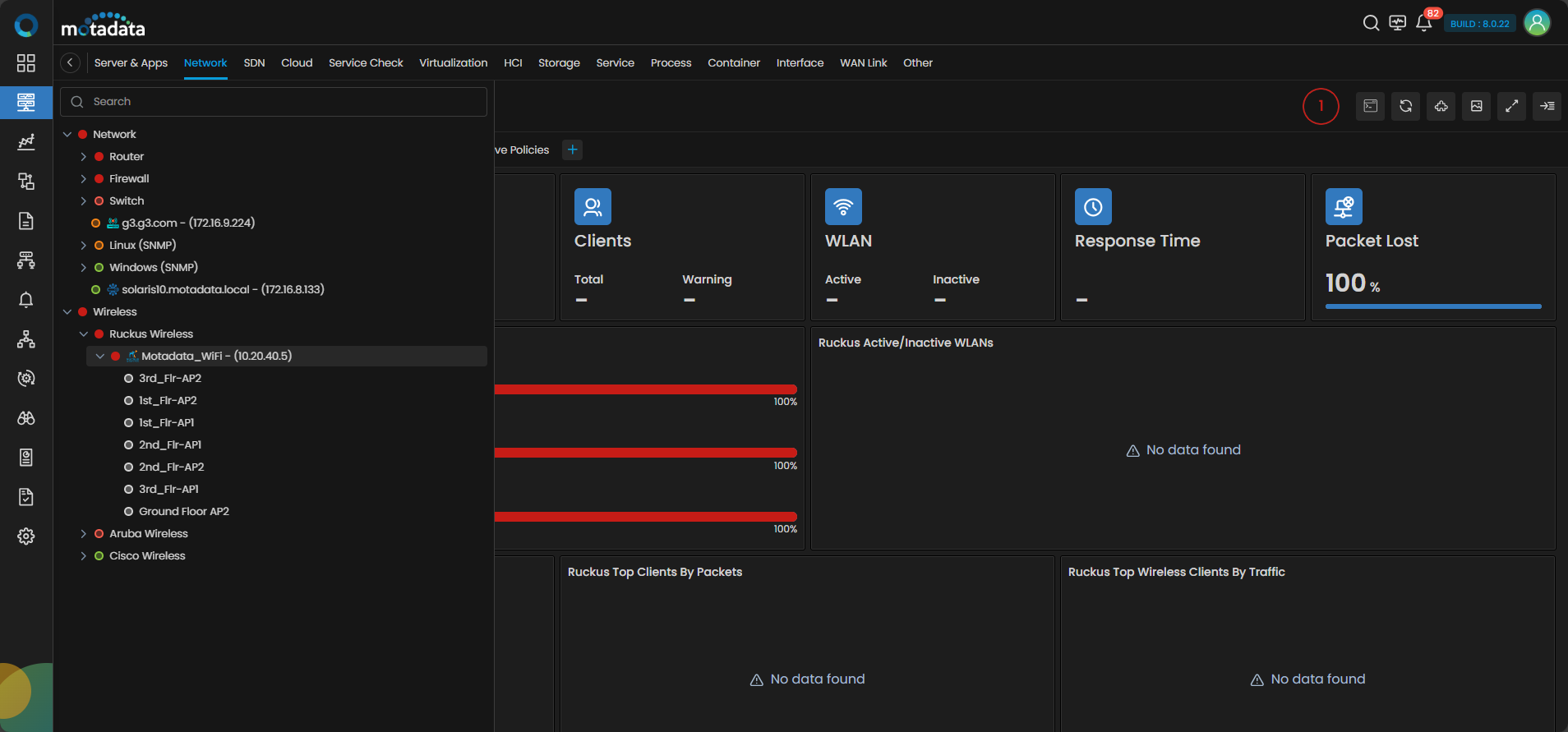
The Ruckus Wireless devices are now added to ObserveOps.
Adding a Ruijie Wireless Device
Prerequisites
- Enable SNMP on the Ruijie device before discovery.
- Confirm that port
161is open and accessible from the ObserveOps server.
1. Create a Credential Profile
Go to Menu. Select Settings . Select Discovery Settings . Select Credential Profile. The Credential Profile screen opens. Select Create Credential Profile.
The Create Credential Profile form opens.
| Field | What to Enter |
|---|---|
| Credential Profile Name | A unique name to identify this profile |
| Protocol | Select SNMP V1/V2c or SNMP V3 based on your device configuration |
| Version (V1/V2c) | Select V1 or V2c and enter the Community and Write Community strings |
| Security User Name (V3) | The SNMP v3 username and Security Level |
Select Reset to clear all fields. Select Add Credential Profile to save.
The profile now appears in the Credential Profile list.
2. Create a Discovery Profile
Go to Menu. Select Settings . Select Discovery Settings . Select Discovery Profile. The Discovery Profile screen opens. Select Create Discovery Profile.
The Create Discovery Profile form opens. Select Wireless from the sidebar. Select Ruijie Wireless.
| Field | What to Enter |
|---|---|
| Discovery Profile Name | A unique name to identify this profile |
| IP / Host | The IP address of the Ruijie wireless controller |
| Collectors | One or more Collectors for data collection. If you skip this, ObserveOps selects a Collector automatically. |
| Groups | One or more Groups to assign to provisioned monitors |
| Credential Profile | Select the Ruijie Wireless credential profile you just created |
| Tags | Tags to assign to discovered devices |
| Port | Pre-populated. No change needed. |
| Ping Check | On by default. Toggle off to discover devices that don't respond to ping. |
| Notify Team | Email addresses, handles, or user profiles to notify when discovery completes |
Select Collectors based on how you want to distribute the monitoring load.
Select Save and Run to save and start discovery immediately. Select Save and Exit to save without running.
3. Provision the Discovered Devices as Monitors
After the discovery run completes, ObserveOps shows all discovered devices. Select the ones you want to add as Monitors.
Select Add Selected Objects to provision the selected devices as monitors. ObserveOps now collects metrics continuously.
To view the monitors, go to Menu. Select Monitor. Select Network.
The Ruijie Wireless devices are now added to ObserveOps.
Adding an Extreme Wireless Device
Prerequisites
- Enable SNMP on the Extreme Wireless device before discovery.
- Confirm that port
161is open and accessible from the ObserveOps server.
1. Create a Credential Profile
Go to Menu. Select Settings . Select Discovery Settings . Select Credential Profile. The Credential Profile screen opens. Select Create Credential Profile.
The Create Credential Profile form opens.
| Field | What to Enter |
|---|---|
| Credential Profile Name | A unique name to identify this profile |
| Protocol | Select SNMP V1/V2c or SNMP V3 based on your device configuration |
| Version (V1/V2c) | Select V1 or V2c and enter the Community and Write Community strings |
| Security User Name (V3) | The SNMP v3 username and Security Level |
Select Reset to clear all fields. Select Add Credential Profile to save.
2. Create a Discovery Profile
Go to Menu. Select Settings . Select Discovery Settings . Select Discovery Profile. The Discovery Profile screen opens. Select Create Discovery Profile.
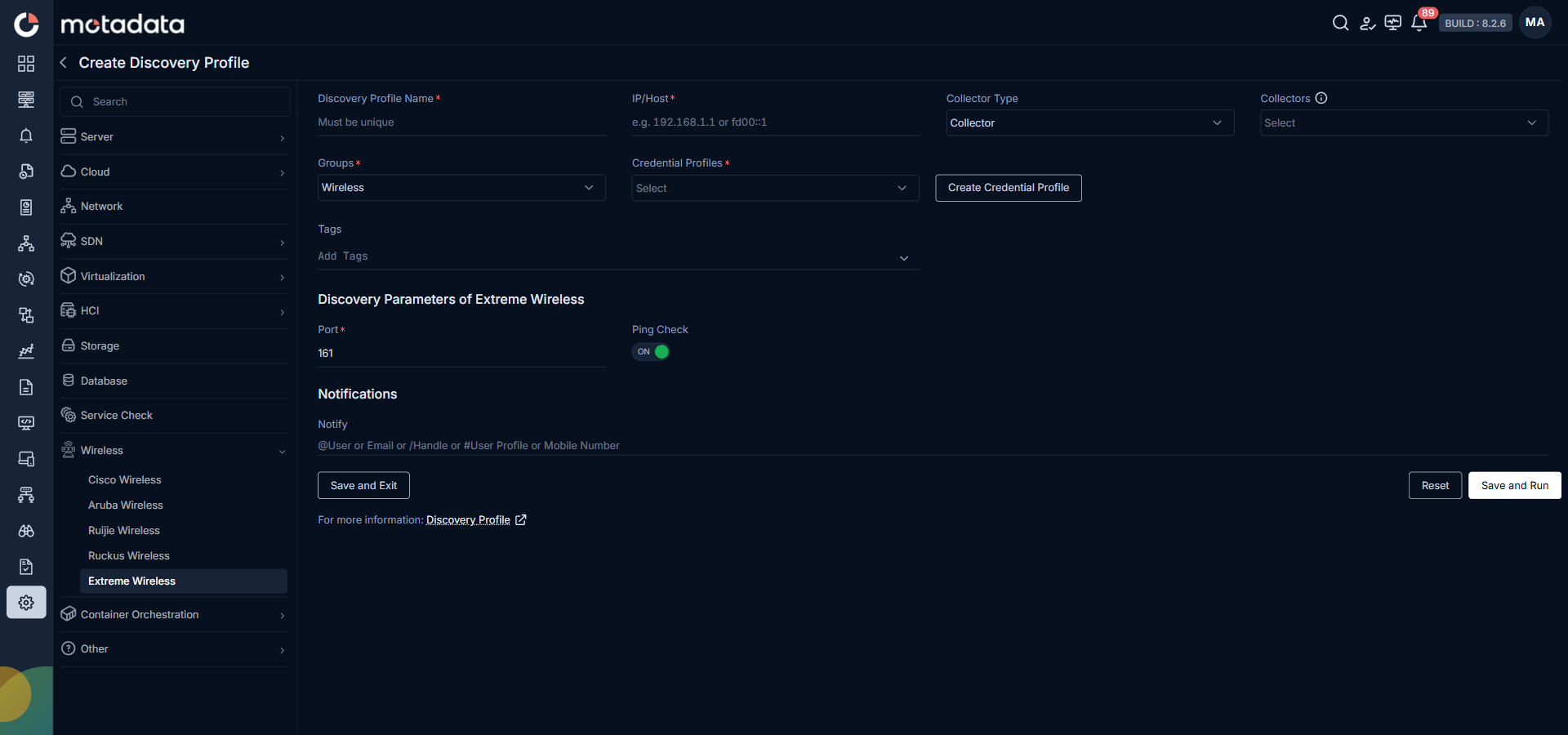
The Create Discovery Profile form opens. Select Wireless from the sidebar. Select Extreme Wireless.
| Field | What to Enter |
|---|---|
| Discovery Profile Name | A unique name to identify this profile |
| IP / Host | The IP address of the Extreme Wireless controller |
| Collector Type | Select Collector for a standard collector |
| Collectors | One or more Collectors for data collection. If you skip this, ObserveOps selects a Collector automatically. |
| Groups | One or more Groups to assign to provisioned monitors |
| Credential Profile | Select the Extreme Wireless credential profile you just created |
| Tags | Tags to assign to discovered devices |
| Port | Defaults to 161. No change needed. |
| Ping Check | On by default. Toggle off to discover devices that don't respond to ping. |
| Notify | Email addresses, handles, or user profiles to notify when discovery completes |
Select Collectors based on how you want to distribute the monitoring load.
Select Save and Run to save and start discovery immediately. Select Save and Exit to save without running.
3. Provision the Discovered Devices as Monitors
After the discovery run completes, ObserveOps shows all discovered devices. Select the ones you want to add as Monitors.
Select Add Selected Objects to provision the selected devices as monitors. ObserveOps now collects metrics continuously.
To view the monitors, go to Menu. Select Monitor. Select Network.
The Extreme Wireless devices are now added to ObserveOps.